The shortcut editor
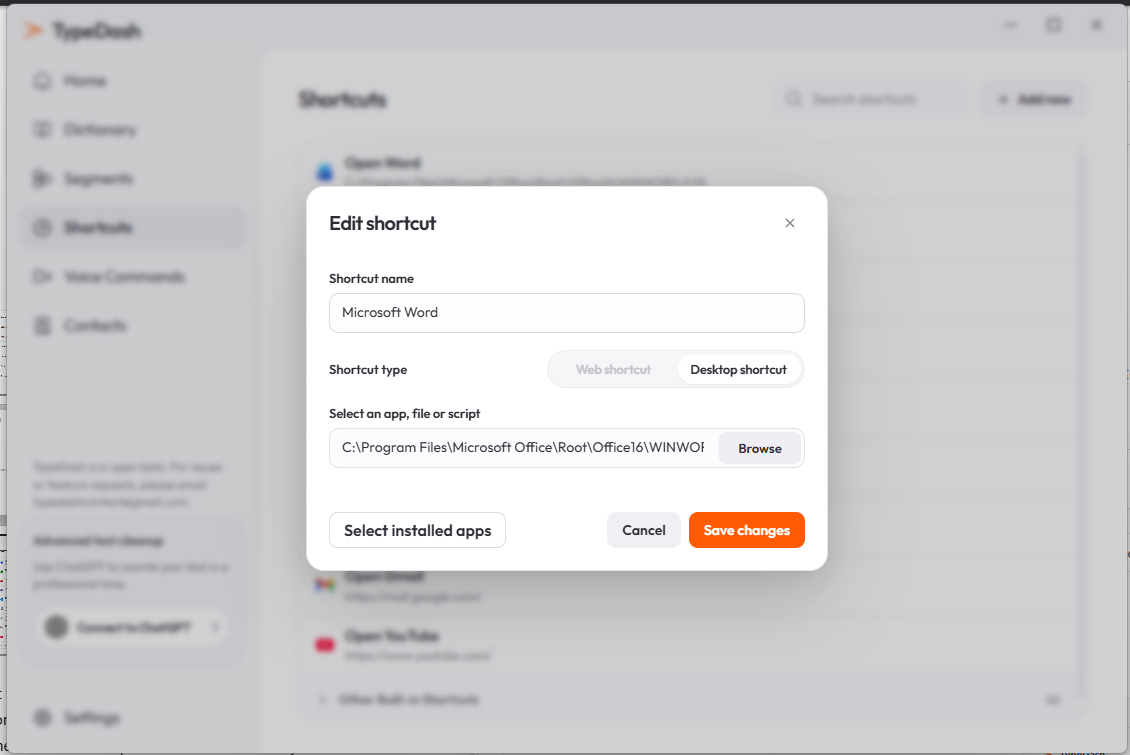
The shortcut editor is where you fine-tune the destination. It lets you rename the shortcut, switch between desktop and web types, and save the final result.
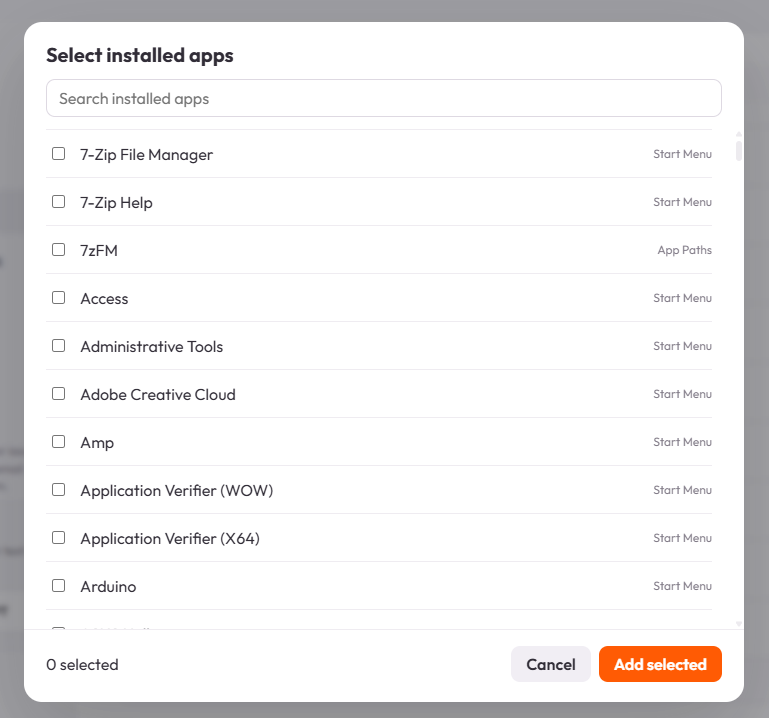
Pick from installed apps
If you do not want to browse to a path manually, use Select installed apps. TypeDash then shows a searchable list of available apps.
When to use each method
BrowseBest when you know the exact file or app pathSelect installed appsBest when you want to choose from discovered applicationsWeb shortcutBest when the destination is a URL instead of a local pathUse names that make sense
A clear shortcut name makes the saved item easier to find later.
Do one final check
After you save, launch the shortcut once. That confirms the path, URL and shortcut type are correct before you use it in a workflow.
Common questions
Can I change a shortcut from web to desktop later?
Yes. The current editor shows a shortcut type switch, so you can change the mode and update the destination.
What if my app is not in the installed apps list?
Use Browse and point TypeDash at the executable, app, file or folder directly.
Keep learning
Control your computer with your voice.
Learn the key TypeDash workflows, then try them in the app.
Explore TypeDash