Example: Excel file to database shortcut
This illustrated replay shows how to drag an Excel workbook from Windows File Explorer into TypeDash and name its shortcut database.
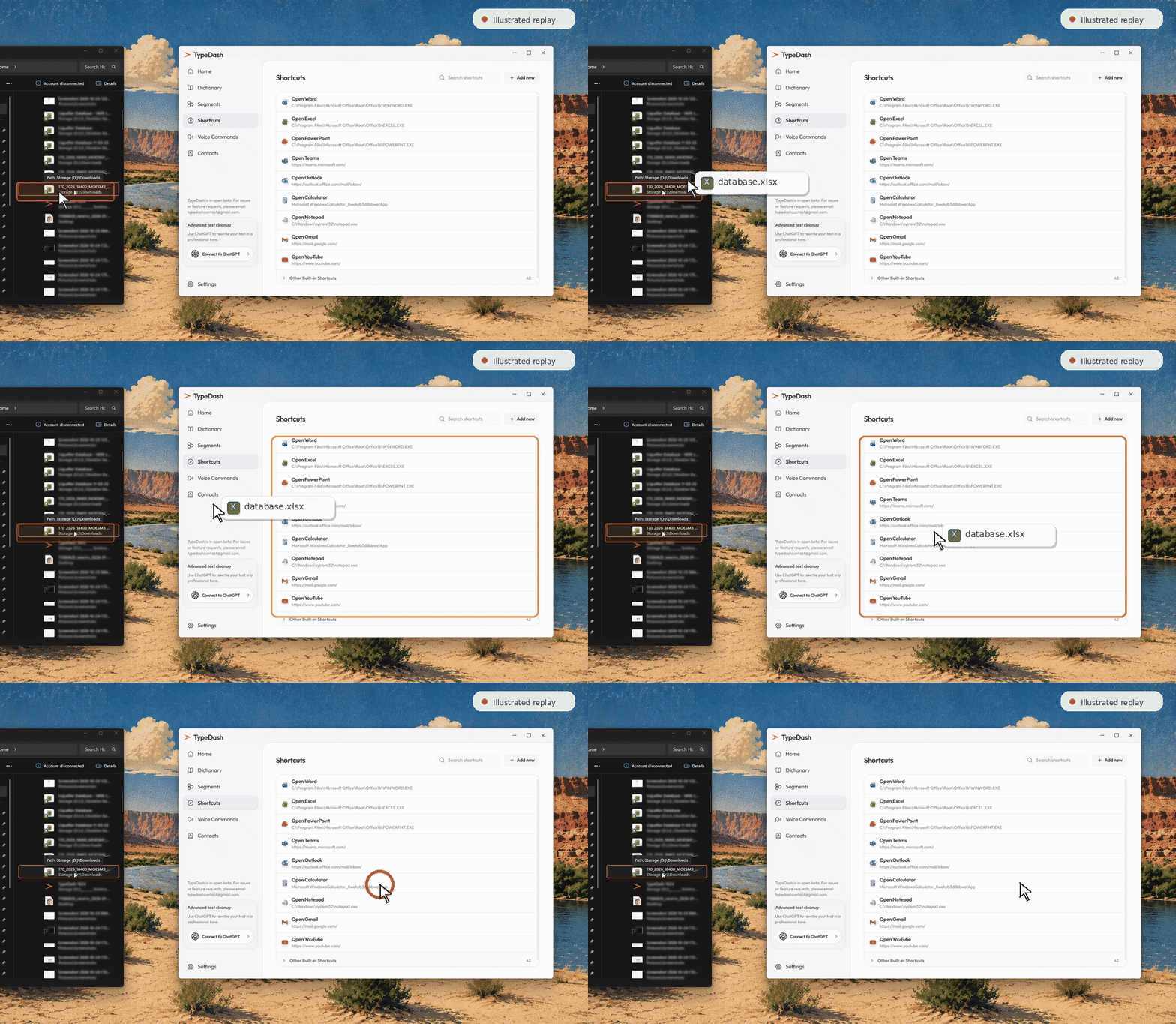
The original workbook stays in its folder. TypeDash saves a shortcut that points to it.
Create the database shortcut
- Open TypeDash
Open the Shortcuts page.
- Find your Excel file
Open File Explorer and select the workbook you want to use.
- Drag and drop
Drag the workbook from File Explorer into the TypeDash window.
- Name it database
Check the shortcut target. Set its name to database, then save.
- Test the shortcut
Open the new database shortcut to make sure it points to the correct workbook.
Use the same method for other items
You can also create shortcuts for supported apps, folders, files and website bookmarks. The exact file and folder windows depend on your operating system.
Excel filesA workbook that you open oftenFoldersDownloads or a project folderApplicationsA desktop app you use each dayBrowser bookmarksDrag a saved web link from your bookmarks barIf you need more control, open the shortcut editor. Choose a desktop or web shortcut and check the saved target.
You can also paste a link
You do not have to drag a browser bookmark. Copy its URL and paste it into a new web shortcut instead.
A desktop shortcut points to the original item. If you move or delete it, check the shortcut again.
Common questions
Does this copy the Excel workbook?
No. This guide creates a shortcut to the existing workbook. You still work with the original file.
Can I drag a folder instead?
Yes, supported folders can also be used as shortcut targets.
Can I drag browser bookmarks?
The shortcut workflow also accepts supported bookmarks. You can paste the web address if drag and drop is not convenient.
Will the windows look the same on Mac?
No. This example shows Windows File Explorer. The Mac file browser and drop interface can differ.
Keep learning
Control your computer with your voice.
Learn the key TypeDash workflows, then try them in the app.
Explore TypeDash