What Shortcuts are for
Shortcuts are a fast way to open things you use often. That can be an installed app, a folder, a file or a website.
The Shortcuts page stores those targets so they are easy to launch again later.
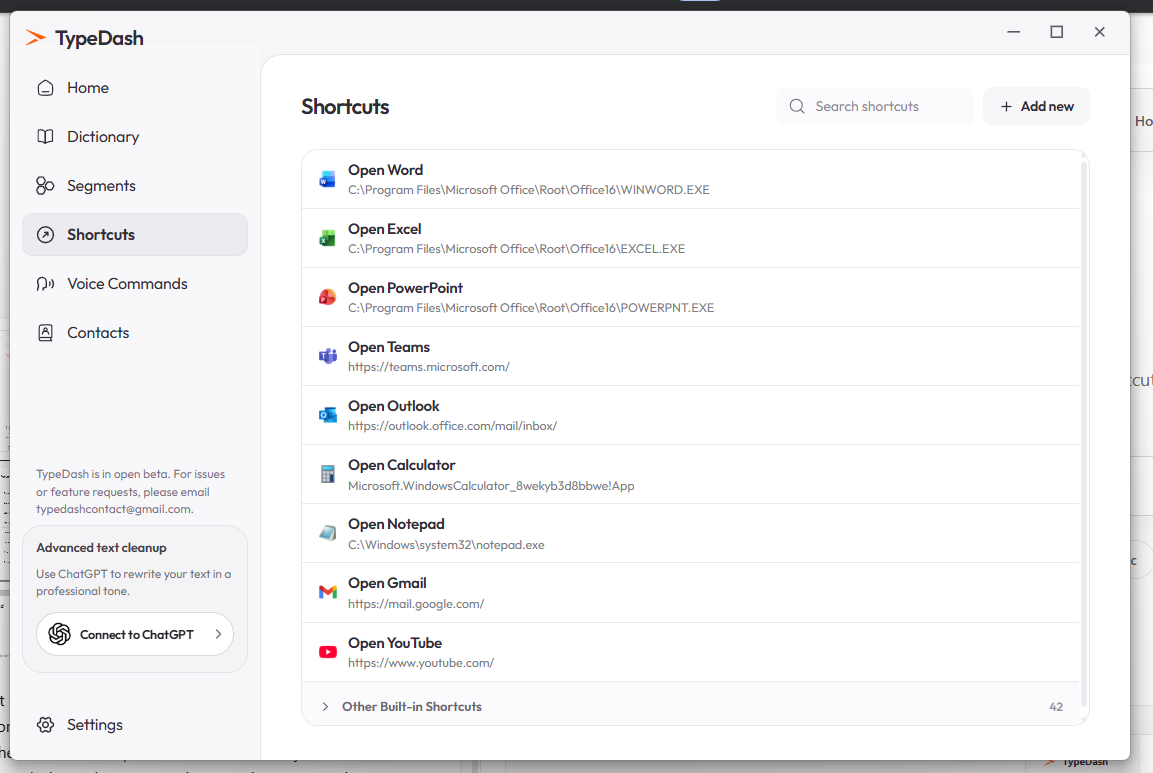
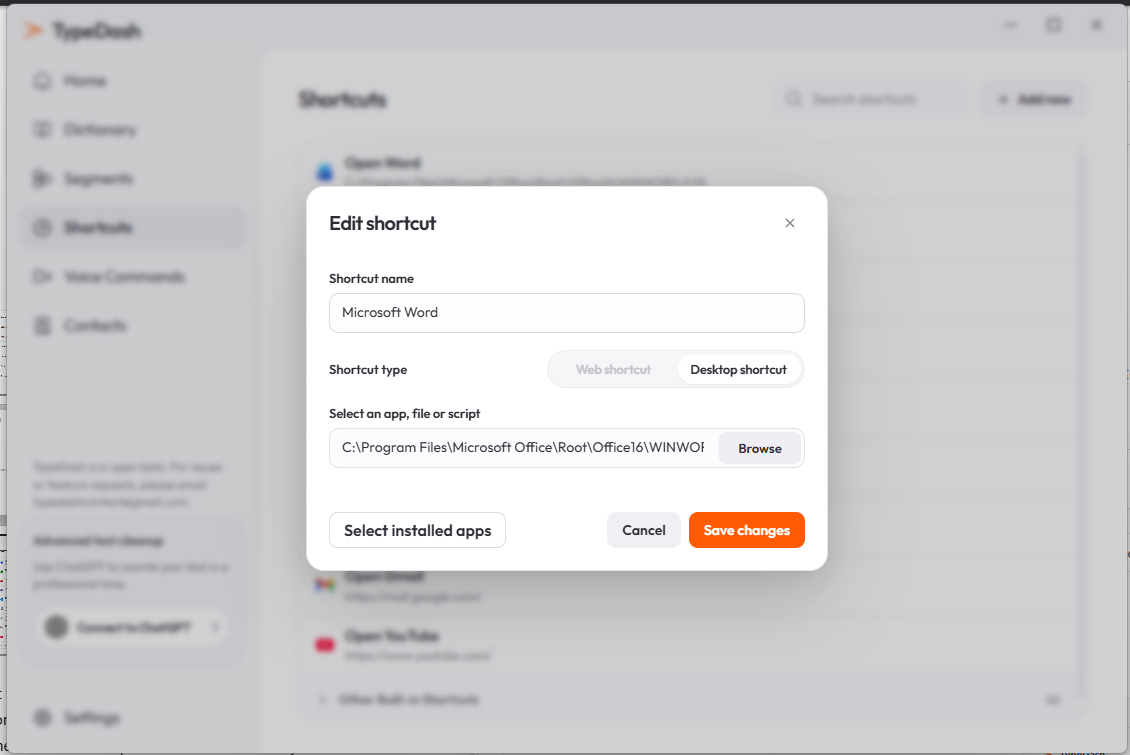
Create or edit a shortcut
- Open Shortcuts
Choose Shortcuts in the sidebar.
- Add or edit
Use Add new to create a shortcut, or open an existing one to edit it.
- Choose the target type
Select Desktop shortcut for an app, file or folder, or Web shortcut for a URL.
- Save and test
Save the shortcut and launch it once to confirm the path or URL is correct.
Common shortcut ideas
Open WordLaunch a desktop applicationOpen DownloadsOpen a folder you use oftenOpen GmailOpen a websiteOpen project briefOpen a file from your computerFor web shortcuts, you can often create the destination by pasting a URL directly.
Manual setup or a faster route
You can set up a shortcut manually from the editor, but TypeDash can also be quicker. For example, you can drag and drop supported items into the app to speed up creation. That drag-and-drop flow is covered in the next guide.
Common questions
What is the difference between a desktop shortcut and a web shortcut?
A desktop shortcut points to something on your computer, such as an app, file or folder. A web shortcut points to a website URL.
Can I use this for a custom Notion page?
Yes. A Notion page can be added as a web shortcut by pasting its URL, or as a dynamic URL-style command if you want to pass search text into a link.
Keep learning
Control your computer with your voice.
Learn the key TypeDash workflows, then try them in the app.
Explore TypeDash