Why this is useful
Keyboard shortcuts are a quick way to automate an action that already exists in another app. Instead of remembering the key combination, you can say a phrase and let TypeDash run it.
This works well for repetitive actions, such as focusing a search box or opening a command palette.
Build the command
- Create the voice command
Open Voice Commands and choose Add new.
- Choose Keyboard shortcut
In the Add action dialog, select Keyboard shortcut.
- Set the key combo
Configure the shortcut you want the app to send.
- Save and test
Save the command and test it in the target application.
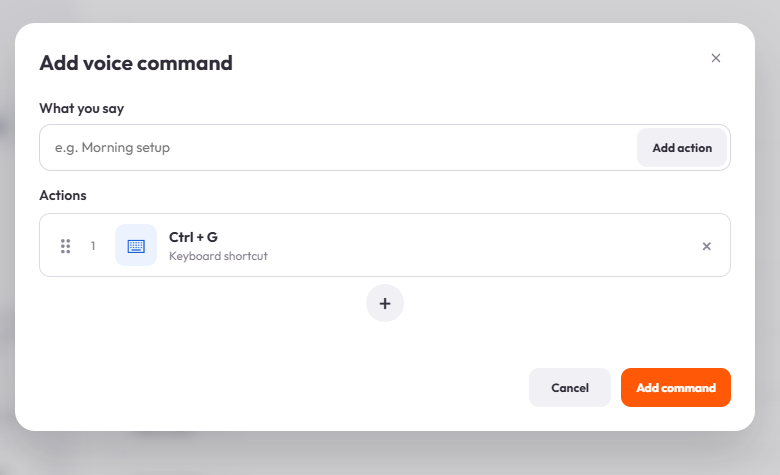
Useful example
The screenshot below shows a phrase called Morning setup with a keyboard shortcut action. The exact keys can be different in your own workflow.
Morning setupExample phrase for a keyboard shortcut workflowCtrl+GExample shortcut shown in the current UI screenshotPractical tips
Keyboard shortcuts act in the currently focused application. Make sure the app you want is active before you run the command.
If you need to run several steps in a row, add the keyboard shortcut after the first action that brings the target app into focus.
Common questions
Will a keyboard shortcut work in every app?
No. The target app must support that shortcut, and it usually needs to be focused first.
Can I combine this with other actions?
Yes. The voice command editor supports an actions list, so a keyboard shortcut can be part of a larger action chain.
Keep learning
Control your computer with your voice.
Learn the key TypeDash workflows, then try them in the app.
Explore TypeDash