What the Home page shows
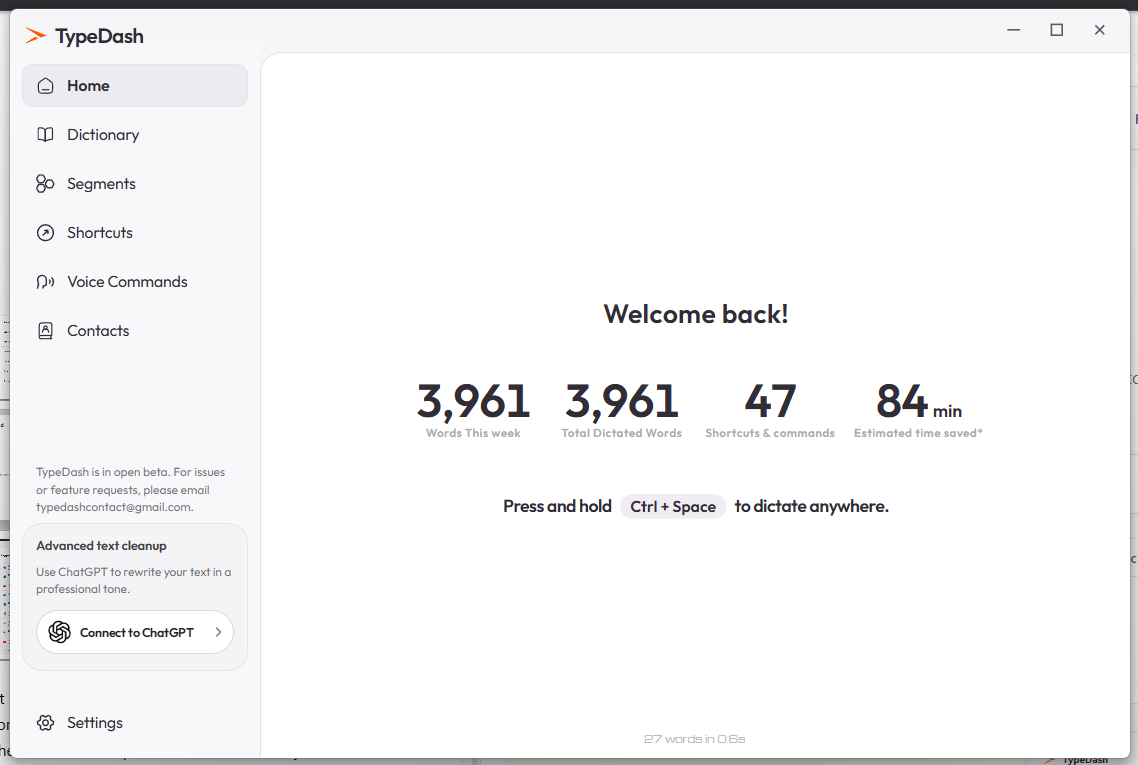
The Home page gives a quick overview of TypeDash. In the current screenshot it shows dictation totals, time saved and the hint Press and hold Ctrl + Space to dictate anywhere.
Start with local dictation
- Choose where to write
Open a document, email or text box.
- Start dictation
Use the configured TypeDash shortcut to begin listening.
- Speak clearly
Say one short sentence at a normal pace.
- Review the result
Check the transcribed text before you continue.
Local dictation and optional cleanup are separate ideas. Local speech recognition is the starting point.
Optional ChatGPT Cleanup
The sidebar card in the current UI shows Advanced text cleanup with a Connect to ChatGPT button. Treat that as optional. It is not the same as the local dictation path.
How to get better results
Use a clear microphone and keep background noise low. Test short phrases first. Review names, numbers and specialist terms, because they often need the most checking.
Common questions
Is dictation the same as voice commands?
No. Dictation writes text. Voice commands trigger actions such as opening shortcuts or tools.
Do I need ChatGPT Cleanup to dictate?
No. The Home page UI presents cleanup as an optional feature.
Keep learning
Control your computer with your voice.
Learn the key TypeDash workflows, then try them in the app.
Explore TypeDash