What a voice command does
A TypeDash voice command links a spoken phrase to one or more actions. You say the phrase after you start TypeDash listening, and TypeDash performs the action chain you created.
Start with a small task first. A short command is faster to remember and easier to debug.
Open the Voice Commands page
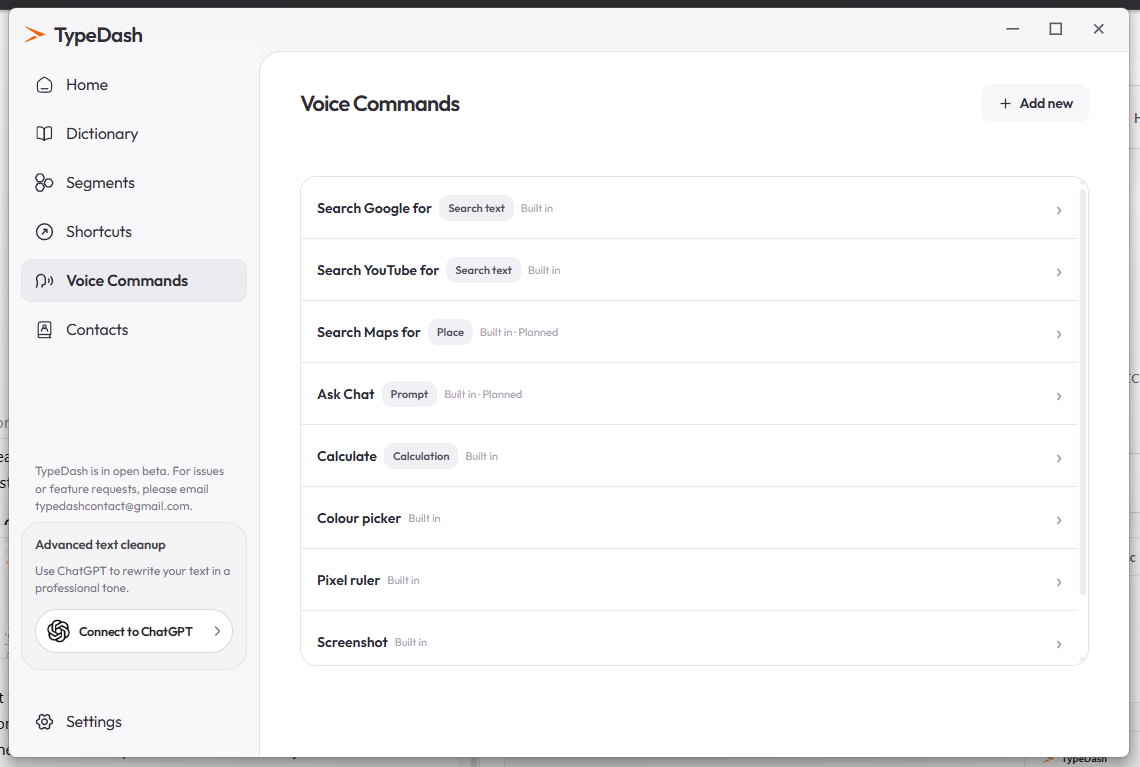
Open TypeDash and select Voice Commands in the left sidebar. The built-in commands list shows the style and structure used by the app.
Add the command
- Click Add new
Use the Add new button in Voice Commands.
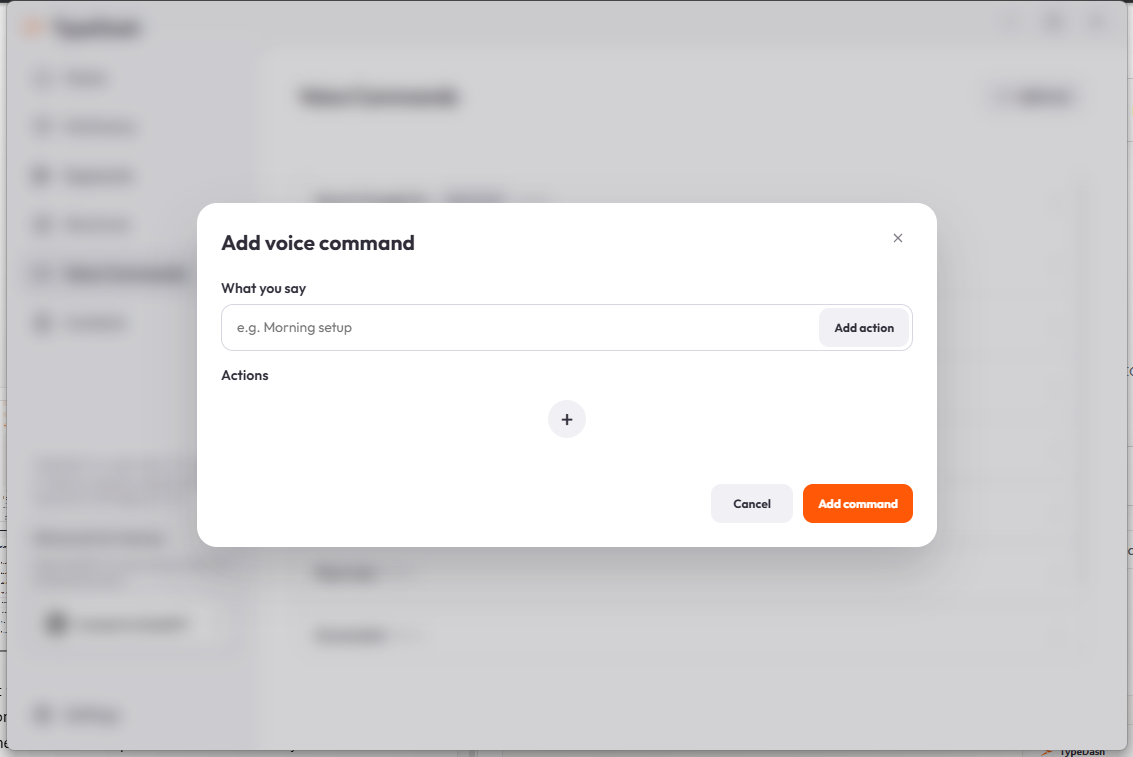
- Name what you say
Enter the exact phrase you want to speak, such as Morning setup.
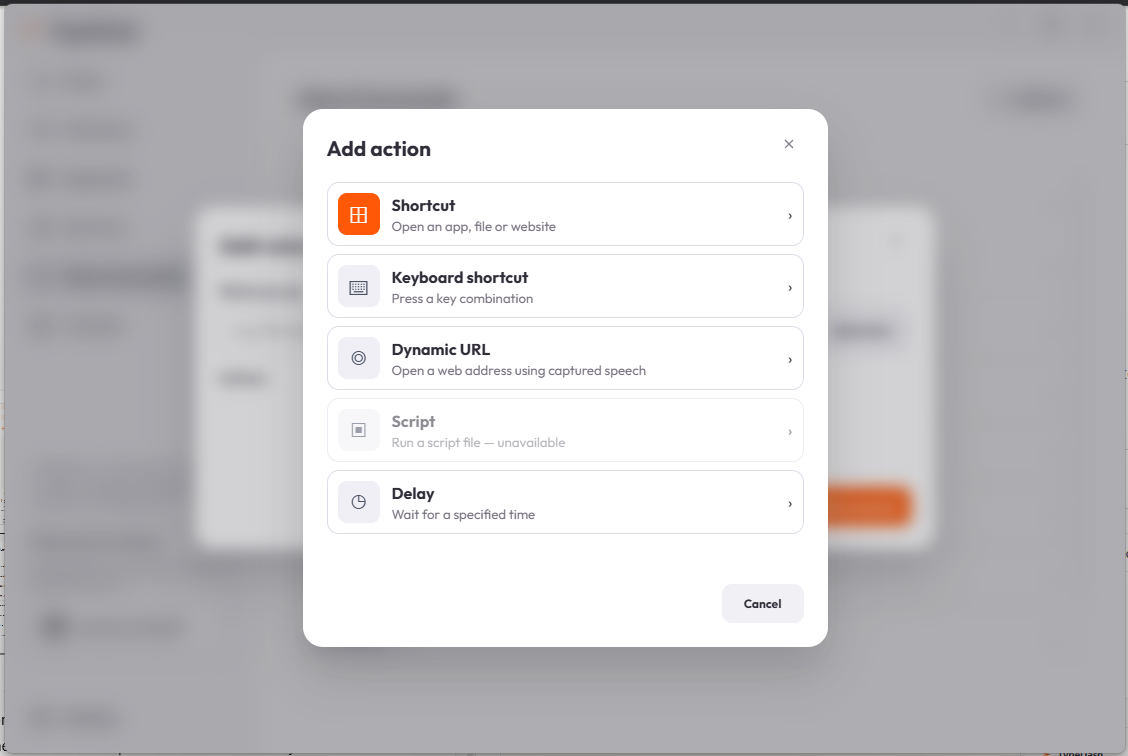
- Add one action
Choose Add action and select the type of action you want.
- Save and test
Save the command, start TypeDash listening and say the phrase once to confirm it works.
Try a good first example
A good first command does one clear thing. For example, you can open a folder, press a keyboard shortcut or launch a website search.
Morning setupExample phrase that can trigger one or more actionsOpen DownloadsSimple example for a folder-based actionAvoid phrases that sound too similar to each other. Clear wording improves reliability.
Make it reliable
Use a phrase you would not normally dictate in text. Keep each command short and avoid creating two commands that sound nearly the same.
If a command does not behave as expected, test it with only one action first. Then add more actions after the first one is stable.
Common questions
Can one voice command have more than one action?
Yes. The add-command flow shows an Actions area and a plus button for adding more actions. Start with one action first, then expand the chain if needed.
Do I need an internet connection for a voice command?
The spoken command recognition can use TypeDash local speech recognition. The destination action itself can still depend on your computer or a website.
Should I use a normal sentence as my command?
Usually no. A short, distinct phrase is easier to recognise and less likely to clash with ordinary dictation.
Keep learning
Control your computer with your voice.
Learn the key TypeDash workflows, then try them in the app.
Explore TypeDash